Backups in Strapi Cloud
Last updated: July 22, 2026
Strapi Cloud provides automatic backups for Pro and Business plans.
Backup schedule and retention
Backups only function on the "Production" environment at this time and cannot be enabled on any extra environments of the project; If you need backups for a UAT/Staging environment please create a new application instead of adding an environment to existing application
Backups occur weekly for Pro plans, and daily for Business plans
We retain backups for one rolling month
You'll have access to your four most recent backups
For applications created before October 12, 2023:
Trigger a new deployment to enable backup functionality
Taking a Manual backup
Note that only one manual backup can exist at a time, if you take a manual backup the previous one will be deleted
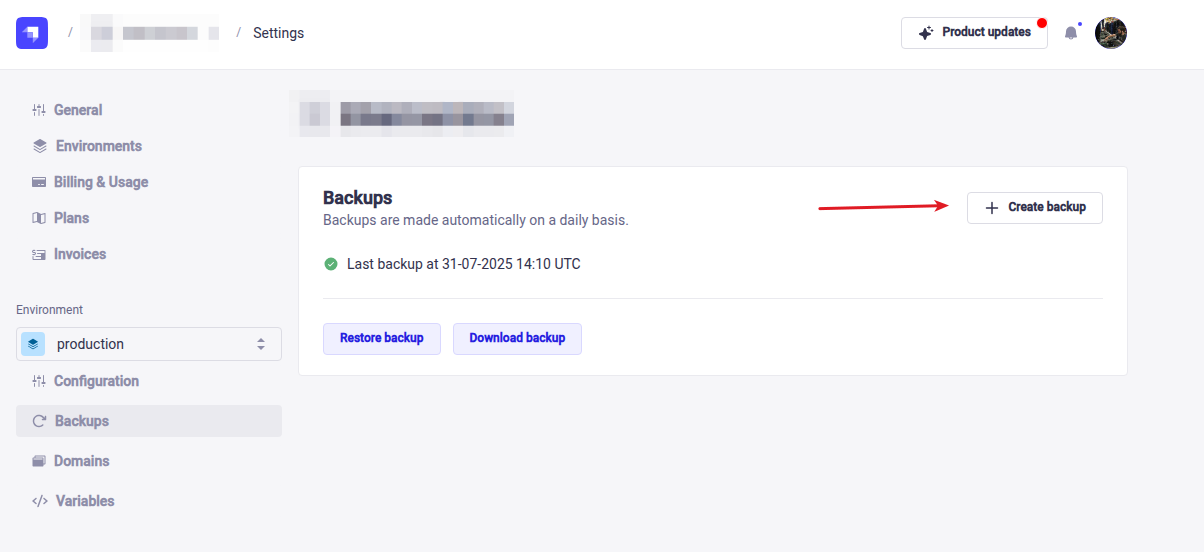
Within the backups section, click the "Create Backup" button:
You will then see the backup being created:
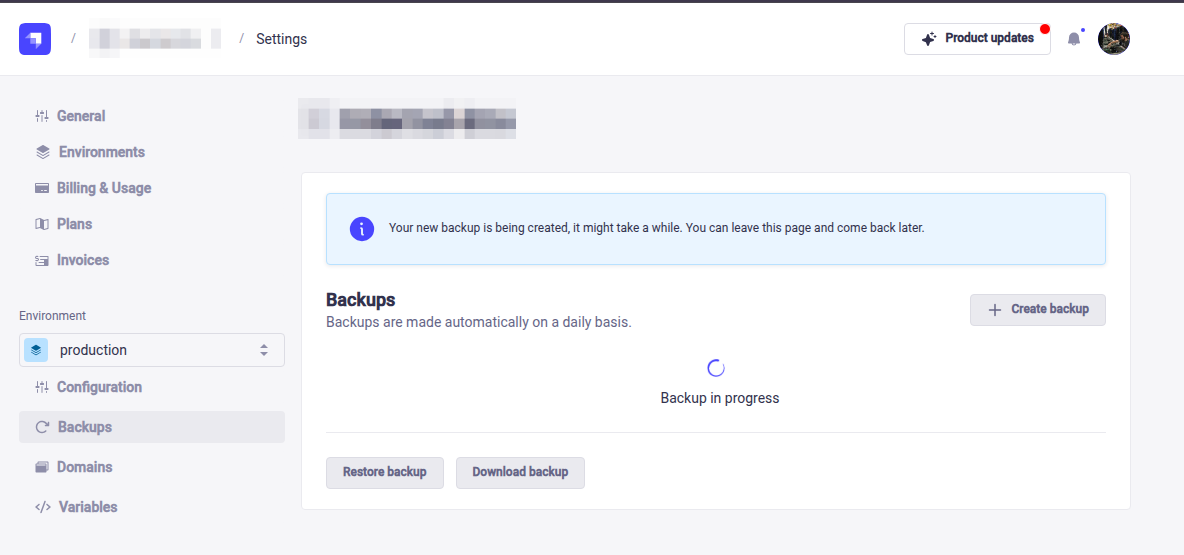
During the backup process you cannot restore or download a backup
Restoring a backup
While a backup is restoring your application most likely will not be available and/or your API endpoints will start returning errors
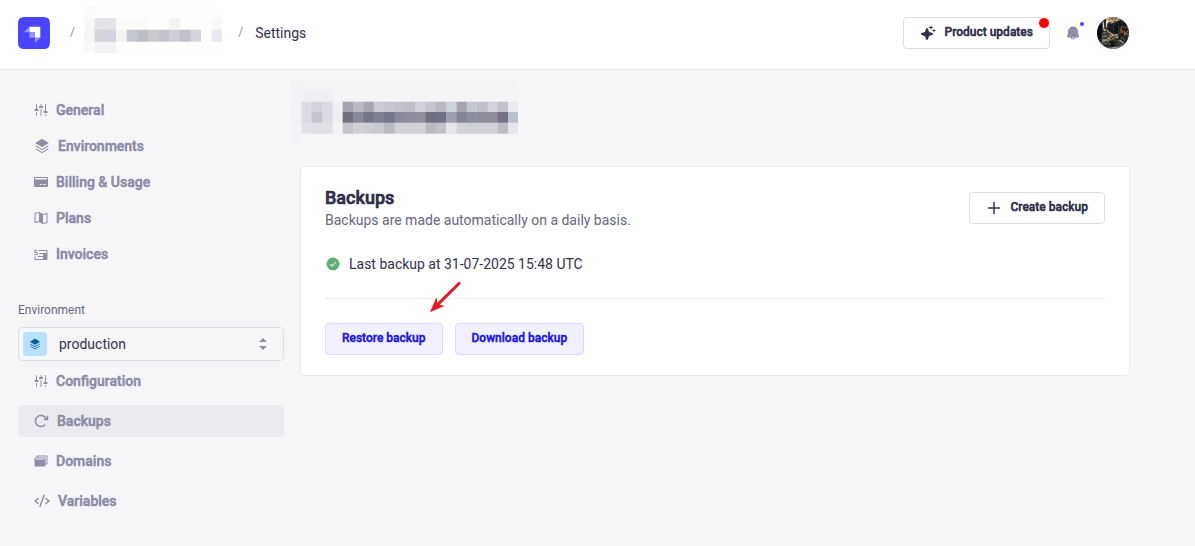
Within the backups section, click the "Restore Backup" button:
Select the specific backup you wish to restore in the popup (manual backups are specifically tagged as such):
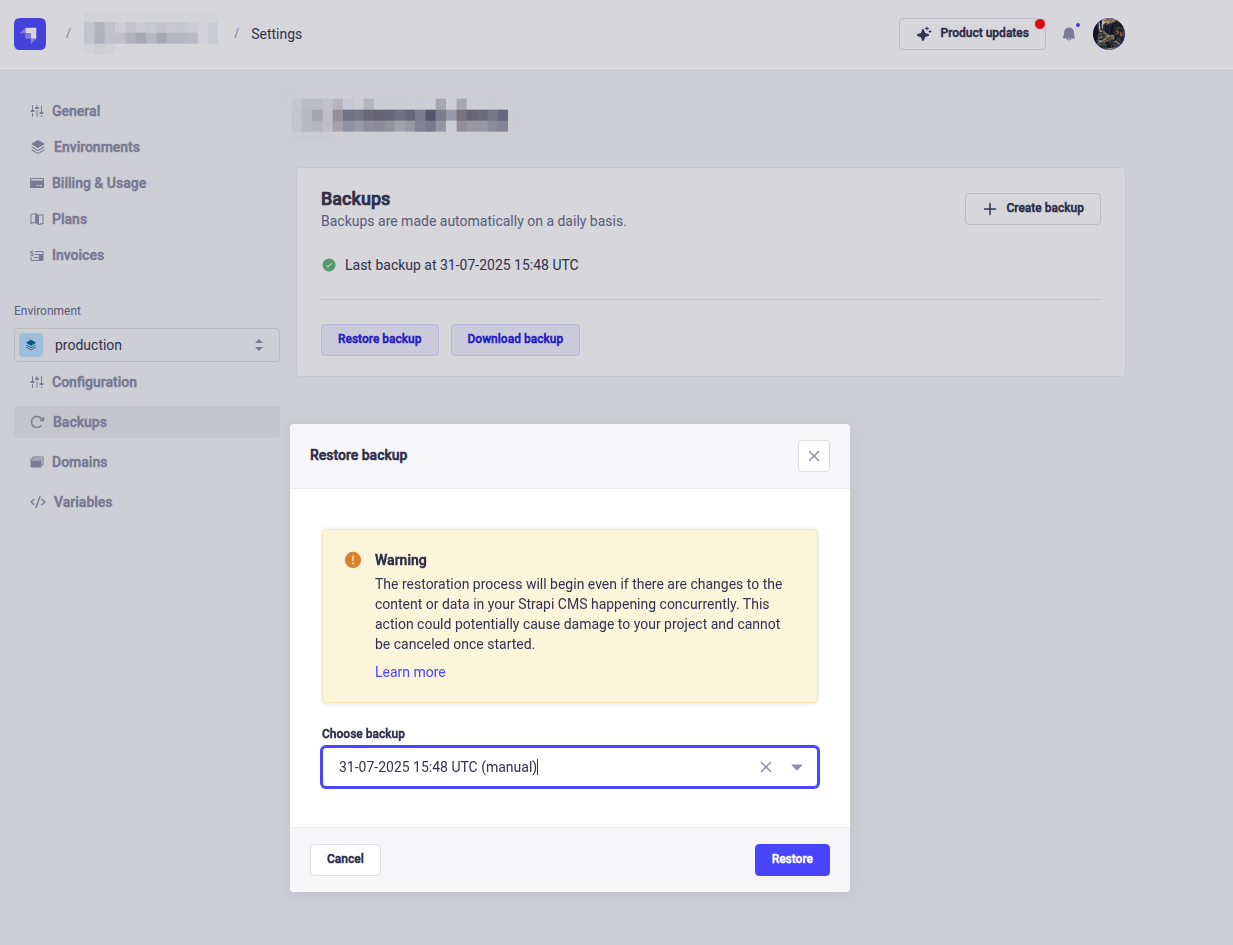
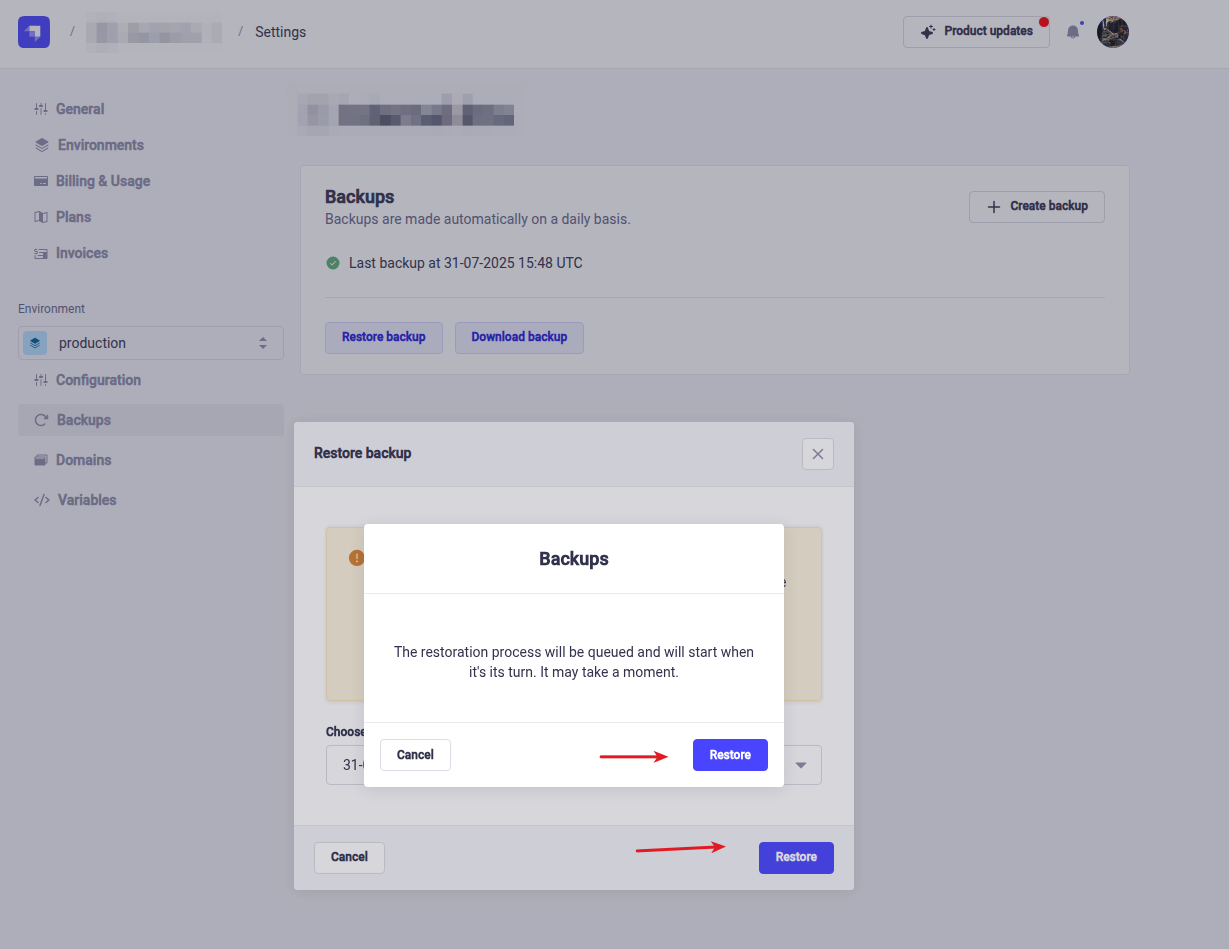
Click the "Restore" button, and then confirm by clicking the second popup "Restore" button:
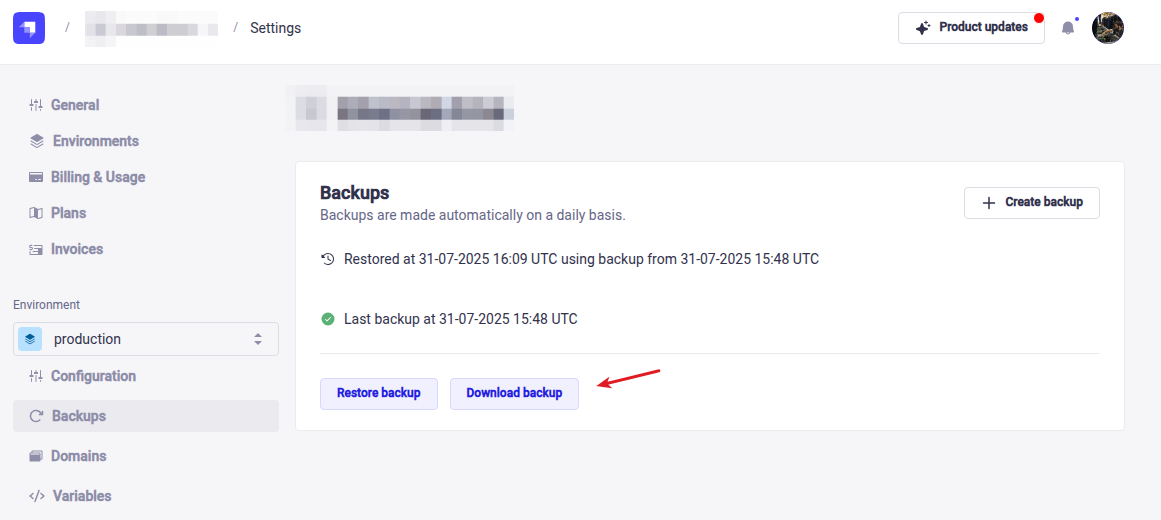
You will see a message in the backups section when the restore is completed:

Downloading a backup
The support team will not be able to utilize backups that you download and send to us; downloading a backup is for self-hosted usage only
Note: Downloaded backups contain database data only (as SQL dumps) and do not include assets or media files. Media assets in Strapi Cloud are stored in S3-like buckets and are not backed up. If a media asset is deleted, it cannot be recovered through the backup system.
Alternative: For more control over media asset backups, you can connect a 3rd party storage provider. See the upload configuration documentation for details.
To back up both your database data and assets/media files from Strapi Cloud, use the Transfer Tool to export your complete Strapi Cloud instance to a local Strapi project on your computer. This allows you to create a full backup including all assets stored in your Cloud uploads folder.
Please see this article regarding converting a Cloud Backup for local usage
Within the backups section, click the "Download backup" button:
Select the backup you wish to download (manual backups are specifically tagged as such):
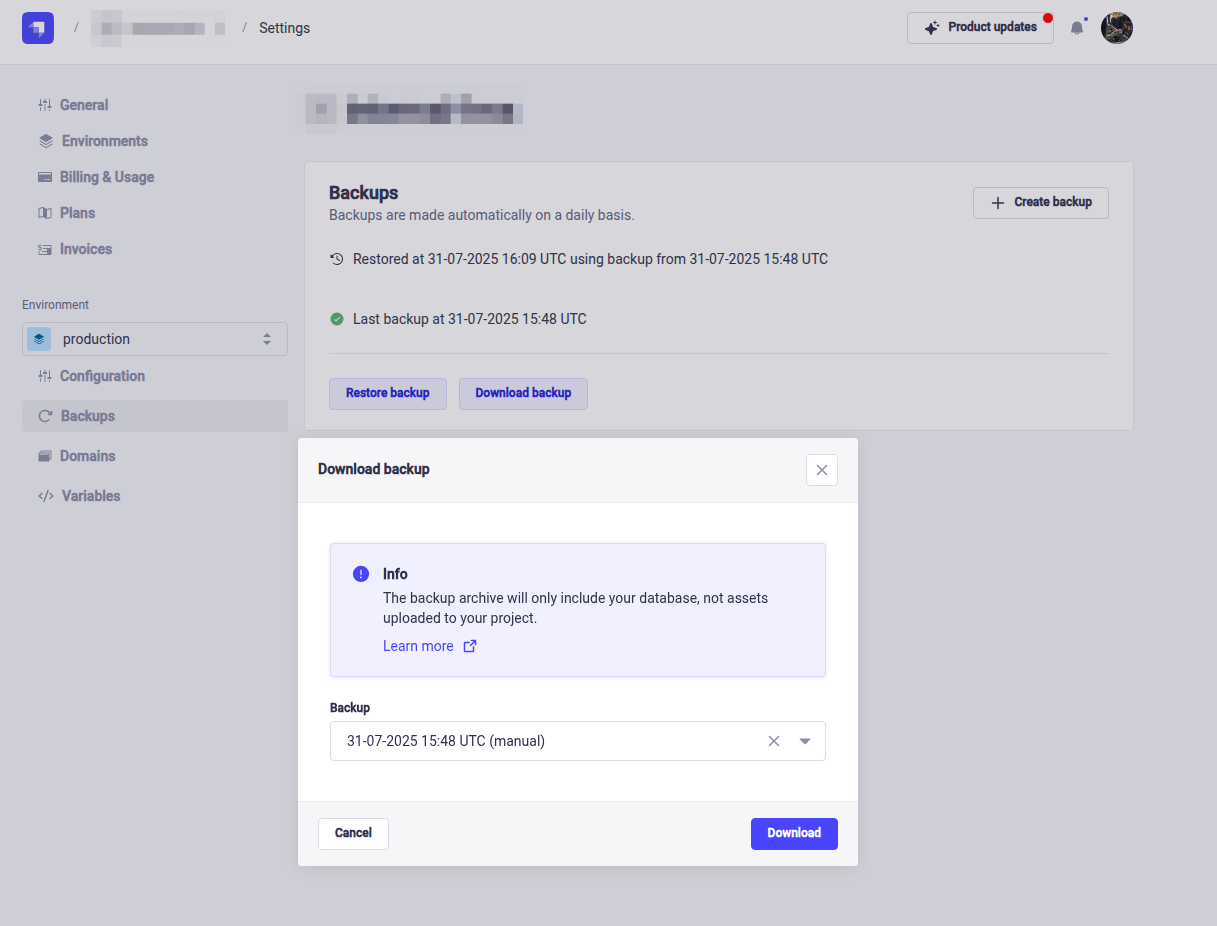
Click the "Download" button, the download will start automatically
