How do I invite my team members to my Customer Portal?
Last updated: November 17, 2025
Invite your team to the Customer Portal
You may want to share your Customer Portal with other members of your team to allow them to create tickets on your company's behalf or to manage their own tickets
If you are not able to add any team members to your account please open a ticket and request that your profile be elevated to an Admin account
By default we create new accounts as "member" level for security
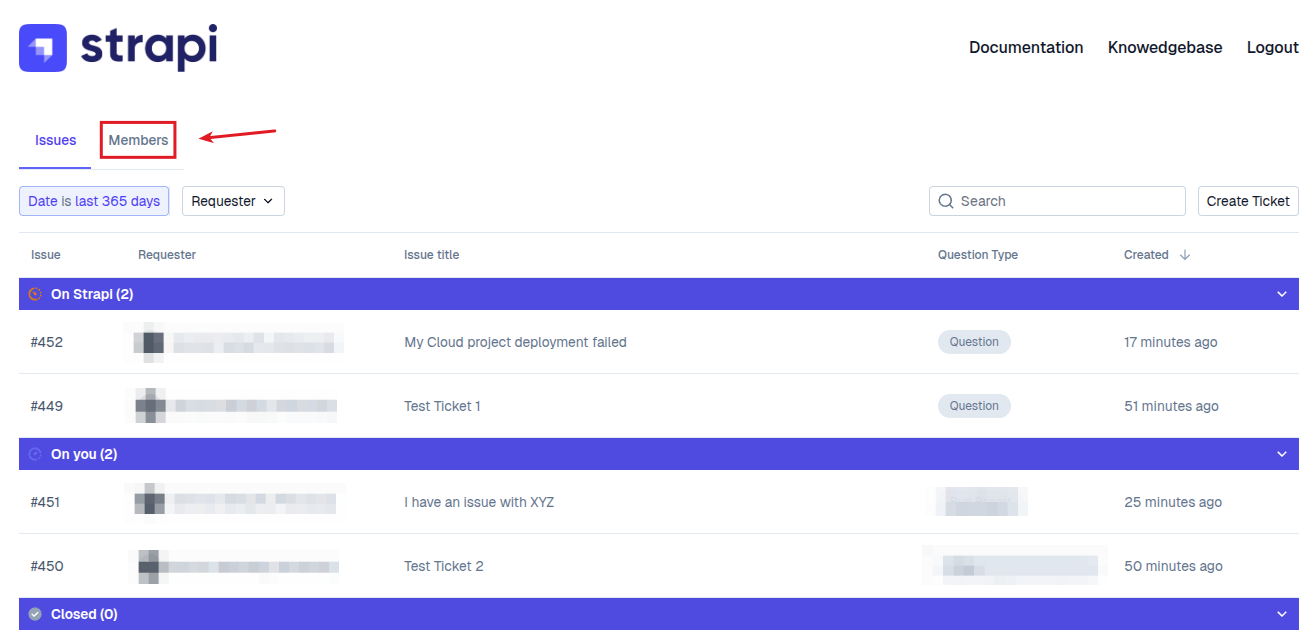
Visit the Customer Portal and click on the "Members" section
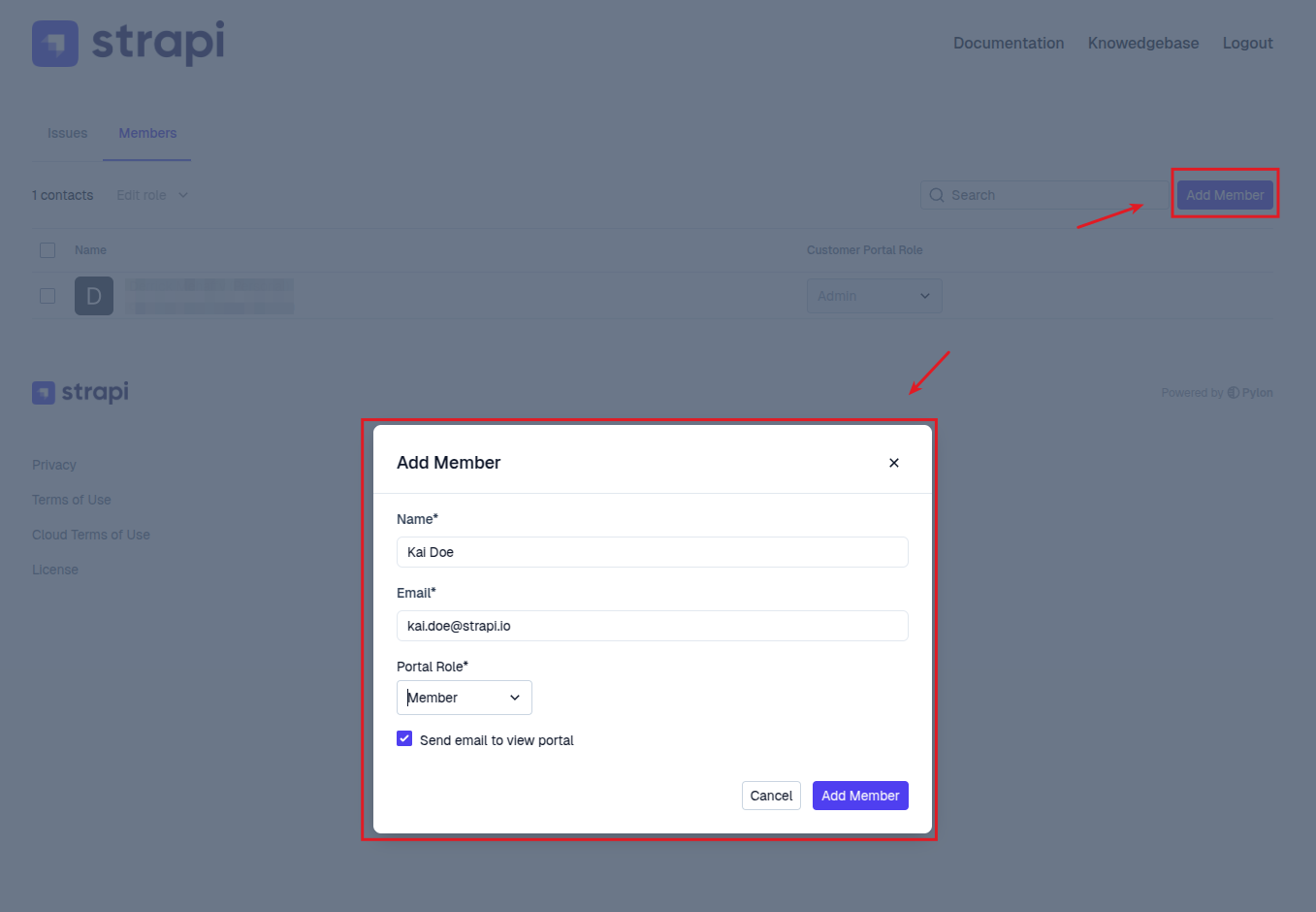
On the members section, click on "Add Member" and fill in the details such as their role and if an invite email should be sent
Important: The person you're inviting must be logged into their Strapi Cloud dashboard before clicking the invitation link in their email. If they encounter a "something went wrong" error, they should sign in to their Strapi Cloud account first, then try accepting the invitation again.
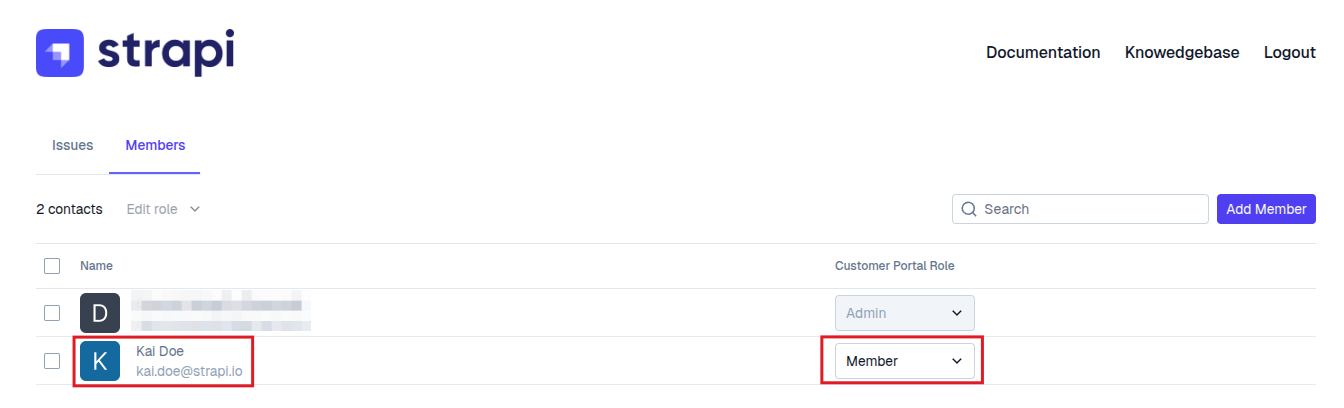
You should see the user account added and be able to edit their role as needed
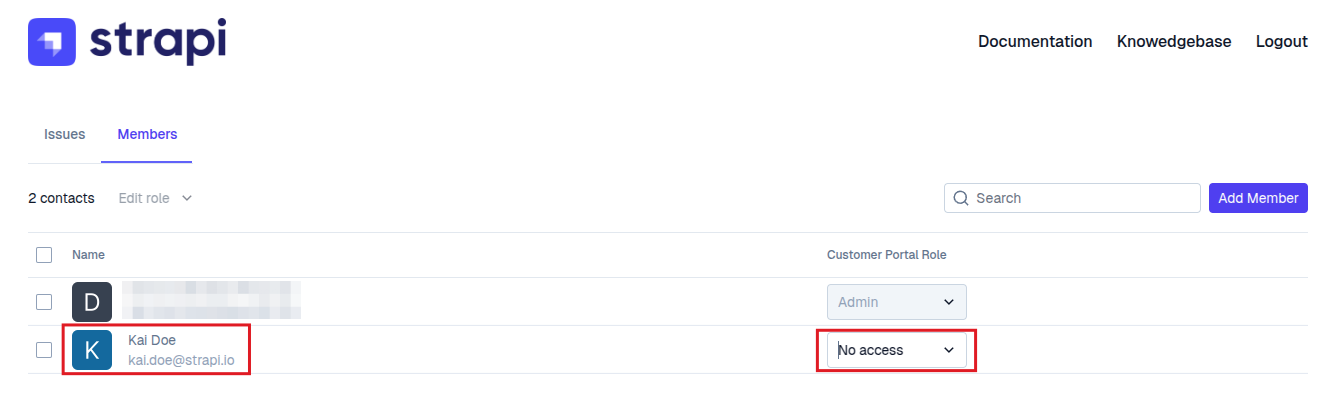
If you need to remove someone from the portal you can set their role as "No Access" or you can open a ticket with us to have them removed
What does each role mean?
Admin
Admins can create/edit/respond to all company profile issues and add/edit new portal users
Member
Members can only see, edit, or create issues that they have been added to (cc'd on)
No Access
This only blocks users from the portal, these users could still open issues via email or via the Strapi Cloud help widget on the Cloud Dashboard
If you need to completely block a user please open a ticket with us
Users with No Access cannot sign into the portal, create new issues, or respond to existing issues