How do I open a new ticket or respond to an existing ticket?
Last updated: April 16, 2025
Creating a new Ticket
Creating a ticket has several different options depending on what you prefer or based on your license
Creating a ticket on the Strapi Cloud Dashboard
This method only applies to Strapi Cloud Customers
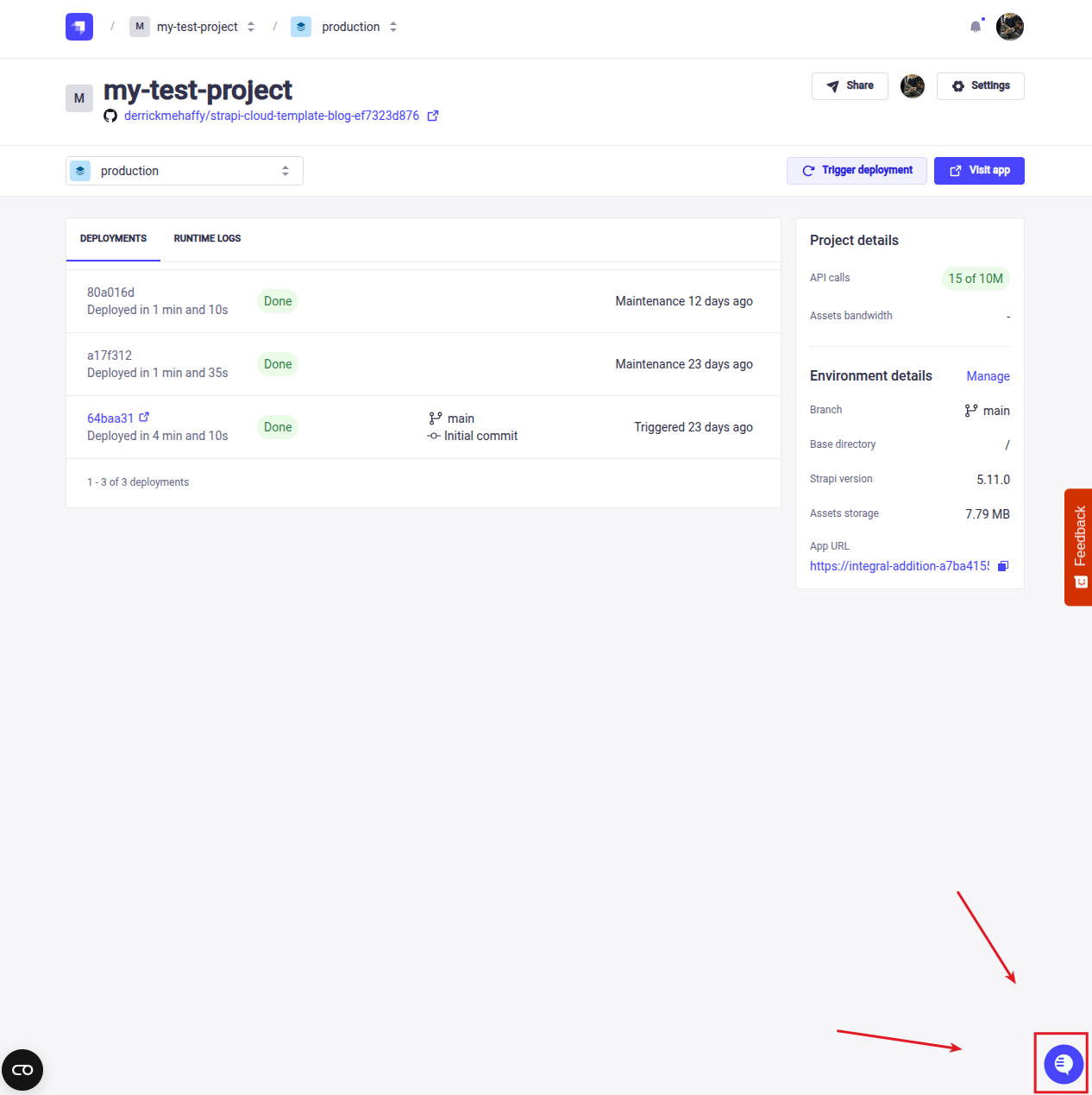
Visit the Strapi Cloud Dashboard and click the icon in the lower right corner
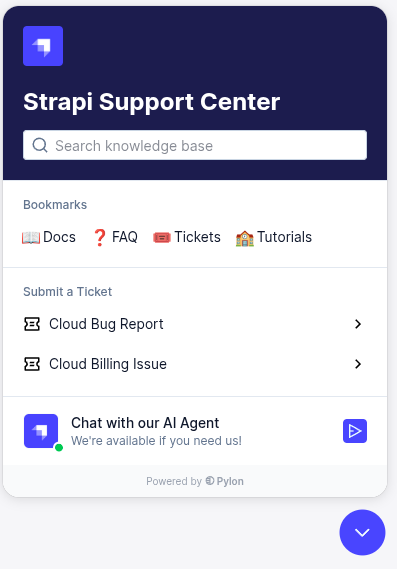
Click on the "Cloud Bug Report" or "Cloud Billing Issue" button to immediately open the new ticket form
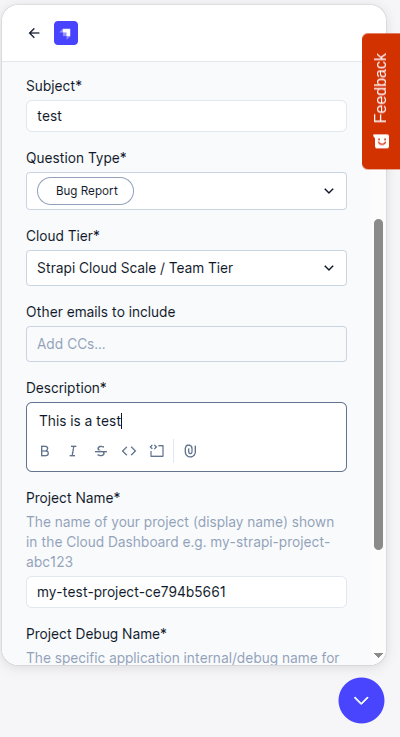
Fill in the related information (some information may be pre-populated for you)
Click Submit and you will see a confirmation message
A copy of the ticket will be sent to your email and likewise you can view the ticket in the Customer Portal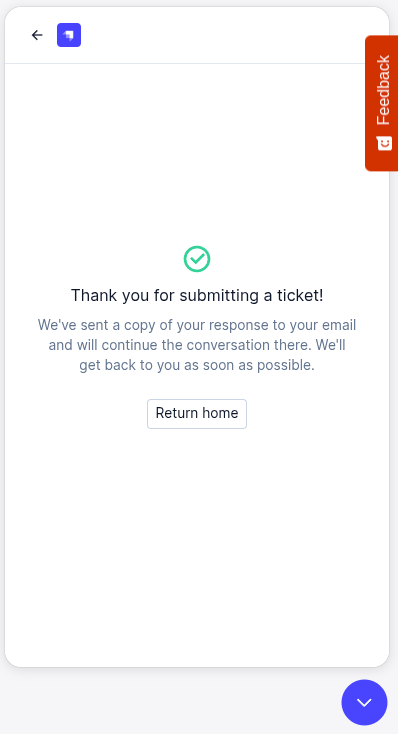
Creating a ticket on the Customer Portal
Visit the Customer Portal and click on the Create Ticket
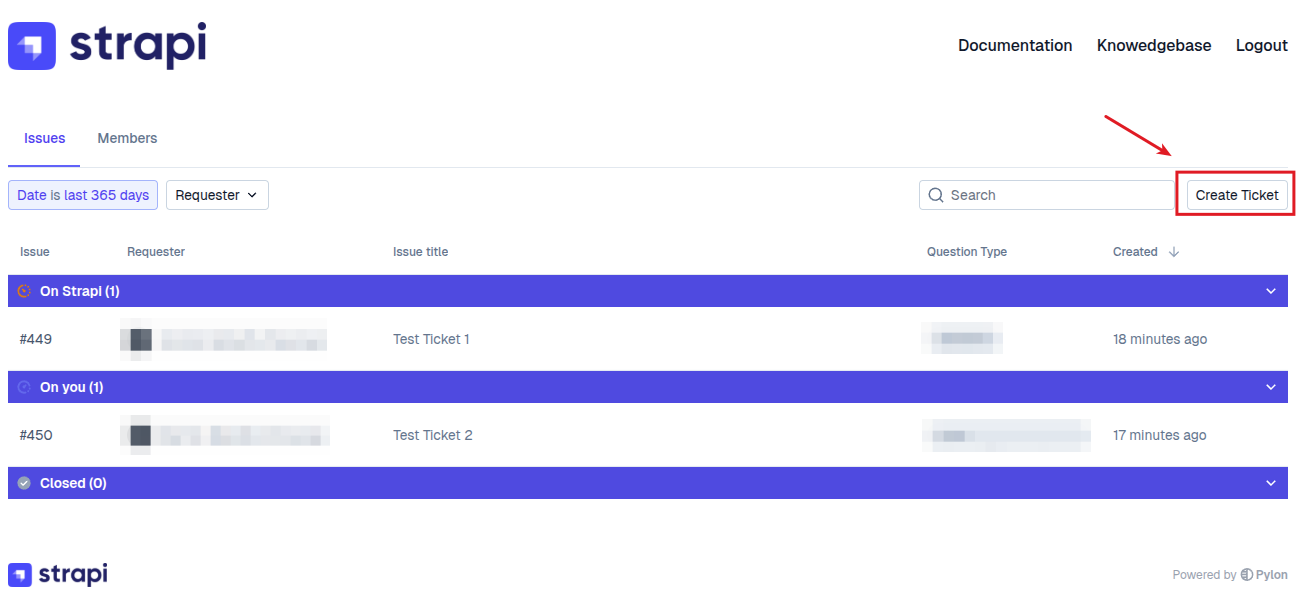
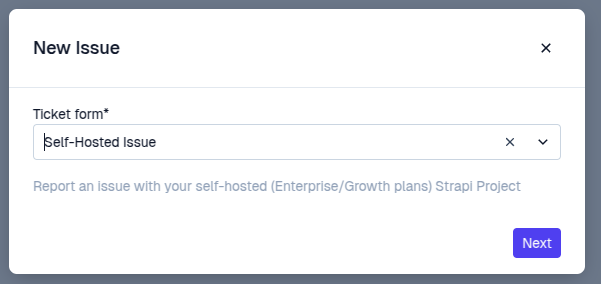
Click on the related ticket type
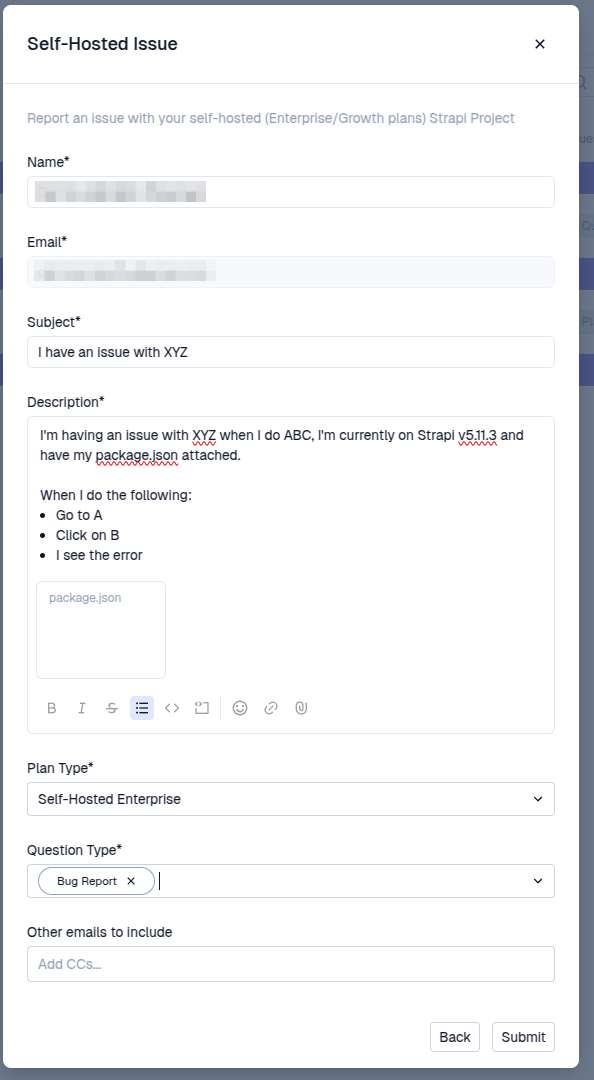
Fill in the related information
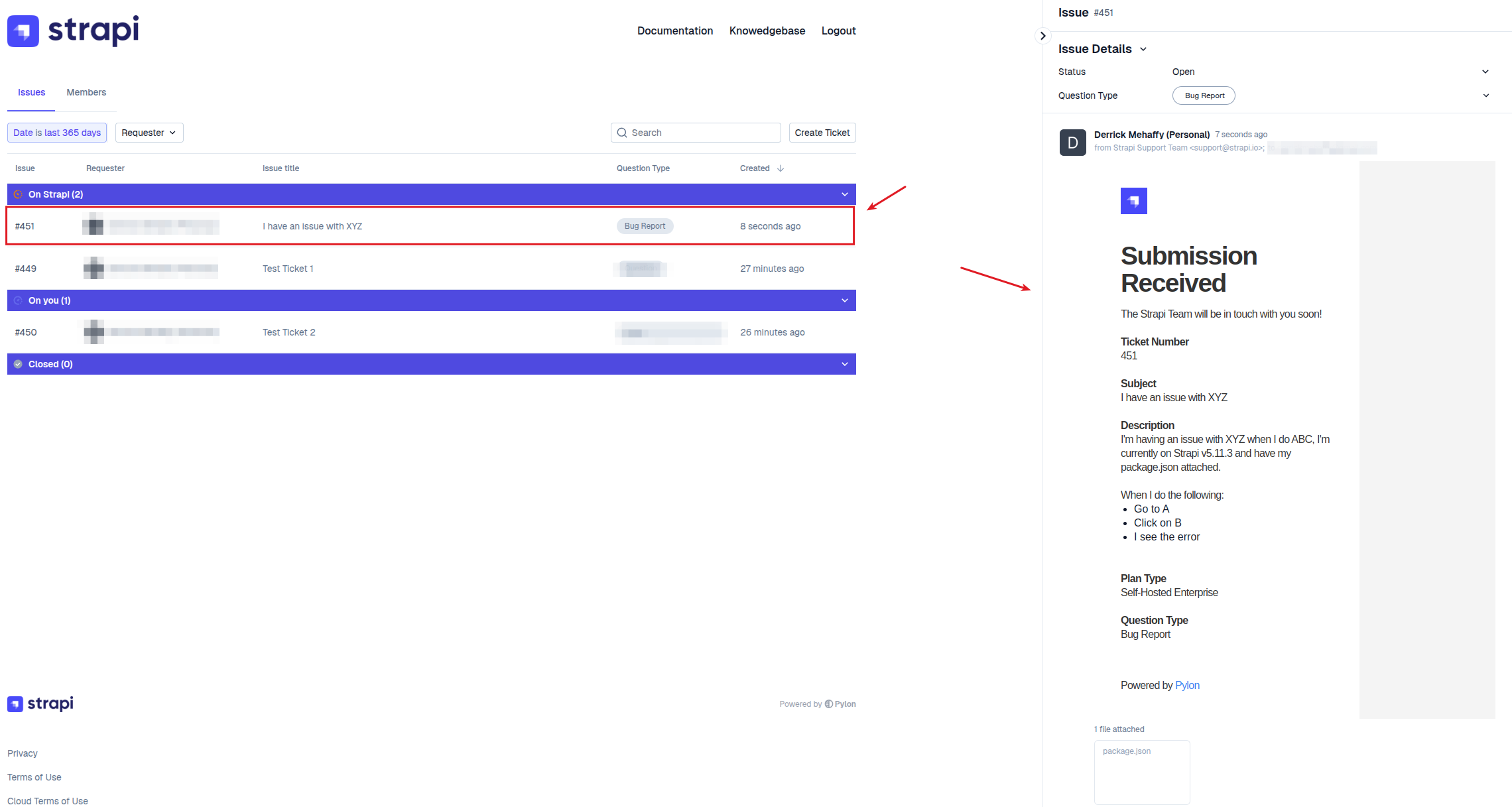
Click Submit and you will see your ticket in the portal (may require a refresh to view)
Creating a ticket via email
Send an email to support@strapi.io
Include as much information as you can, we recommend reviewing the following article for the information we may need
Responding to an existing Ticket
Responding on the Customer Portal
Visit the Customer Portal and click on the current ticket you wish to respond to
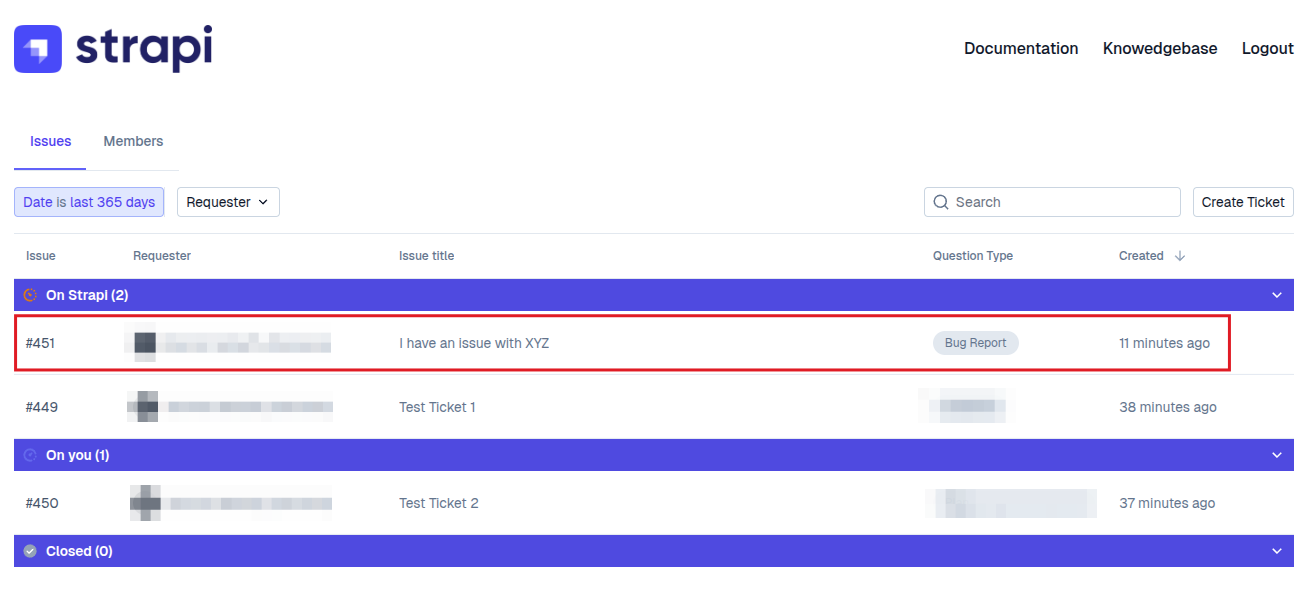
In the new panel to the right, at the bottom there is a box that you can use to reply to
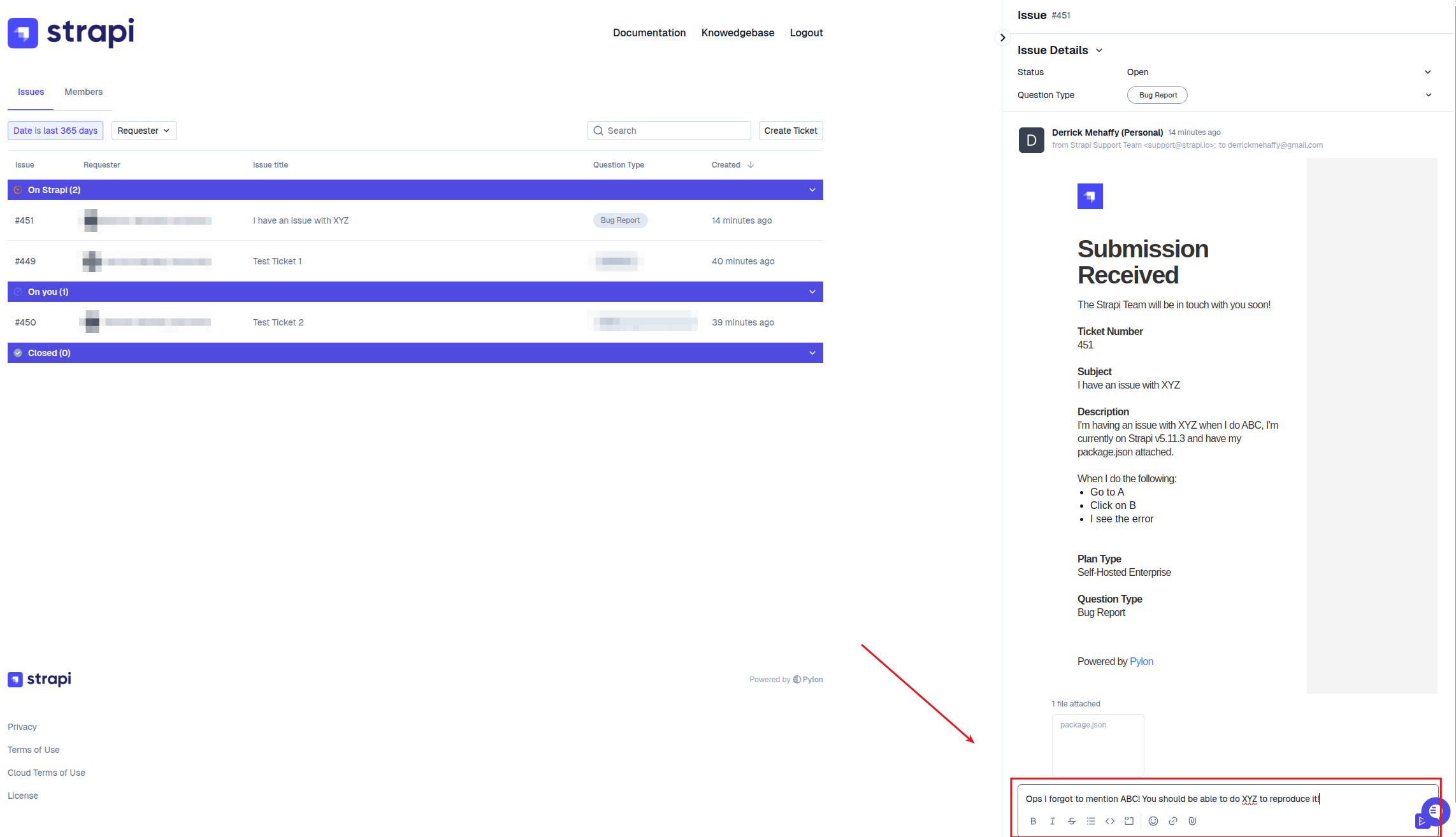
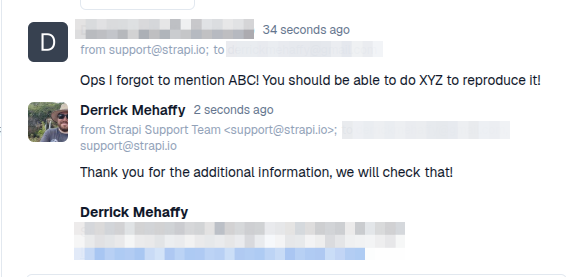
You will also be able to see our responses
Responding via email
Please do not respond to an old ticket to open a new one as it will reopen the old ticket instead
Locate the ticket within your email
Use the reply all option to ensure all of your cc'd contacts are included
Responses from the Strapi Support team will also be sent to your email