How do I upgrade or downgrade my Strapi Cloud plan?
Last updated: August 31, 2026
Upgrade or downgrade plan tier
If you would like to upgrade or downgrade your plan tier there are a few things to note:
You may not be able to downgrade if your current usage exceeds the limits of the plan you wish to downgrade to
You may incur additional overage costs for usage limits that have overage costs
Downgrades take effect on the next billing cycle
Upgrades take effect within a few hours of selecting the new plan after the payment has processed
You will be required to pay the prorated cost of the upgraded plan level immediately
Only the account owner can make plan or billing changes to projects
Cloud plan tier changes are made from the Cloud dashboard at cloud.strapi.io. For payment methods, invoices, and Growth subscription management, use billing.strapi.io.
If you upgrade / sidegrade to a new plan from a legacy plan, it will not be possible to go back to the legacy plan
Certain legacy plans used to bundle paid features into the Cloud plan. If you move to a new plan, you may also need a separate Growth or Enterprise license for those features. Growth subscriptions are managed at billing.strapi.io. See this blog post for details.
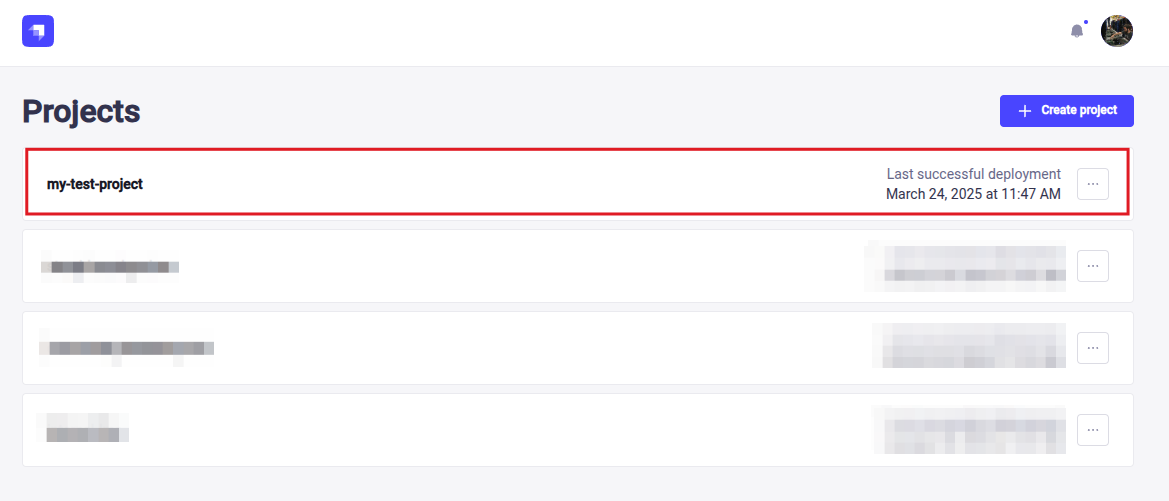
Open the Cloud Dashboard and select the project you wish to upgrade or downgrade
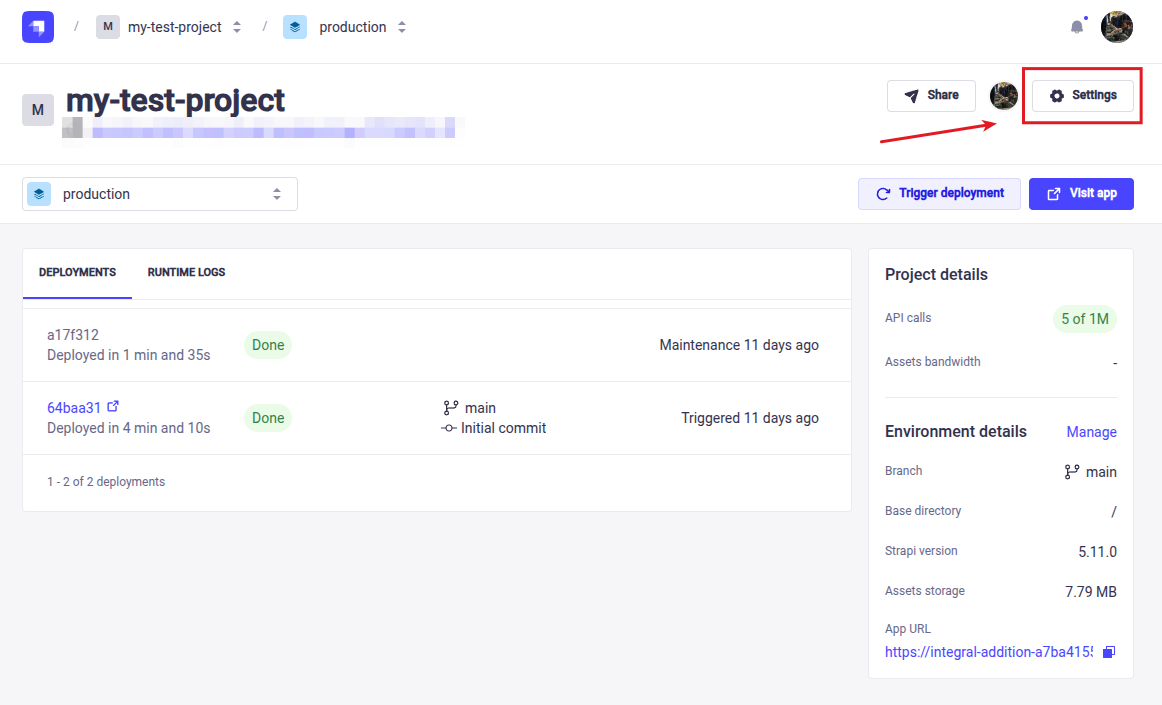
Click on the settings button within the project
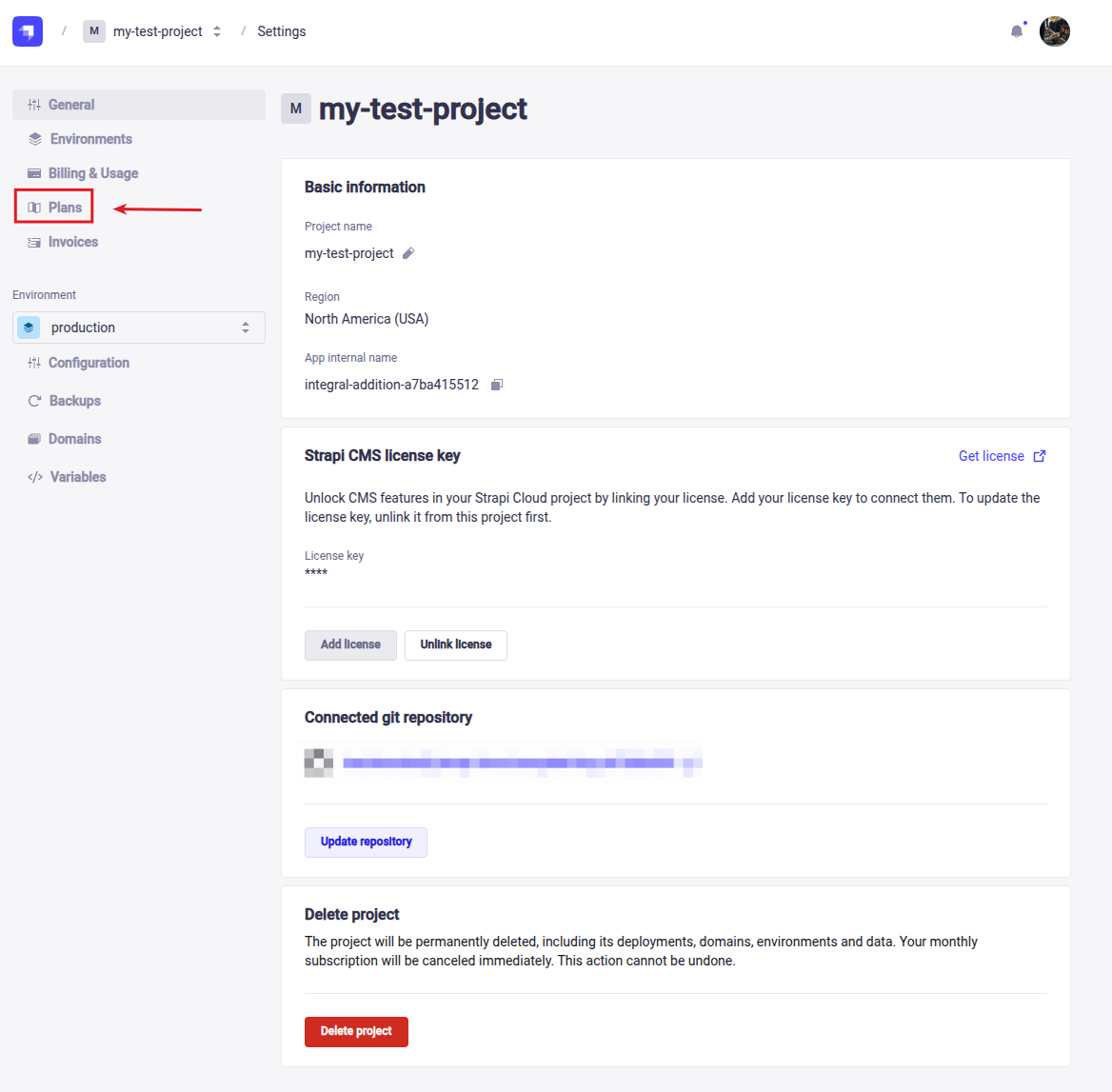
Open the Plans section
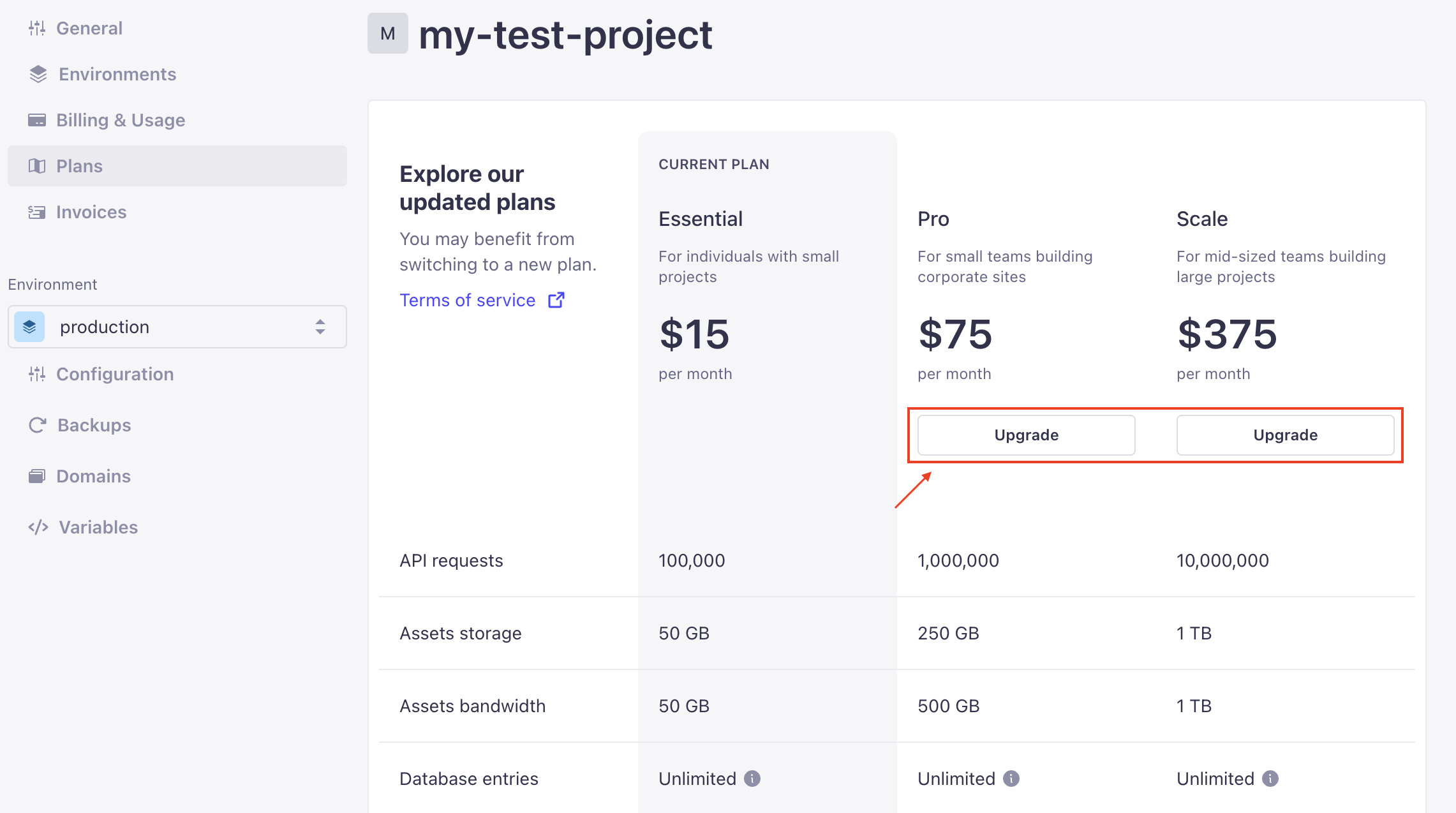
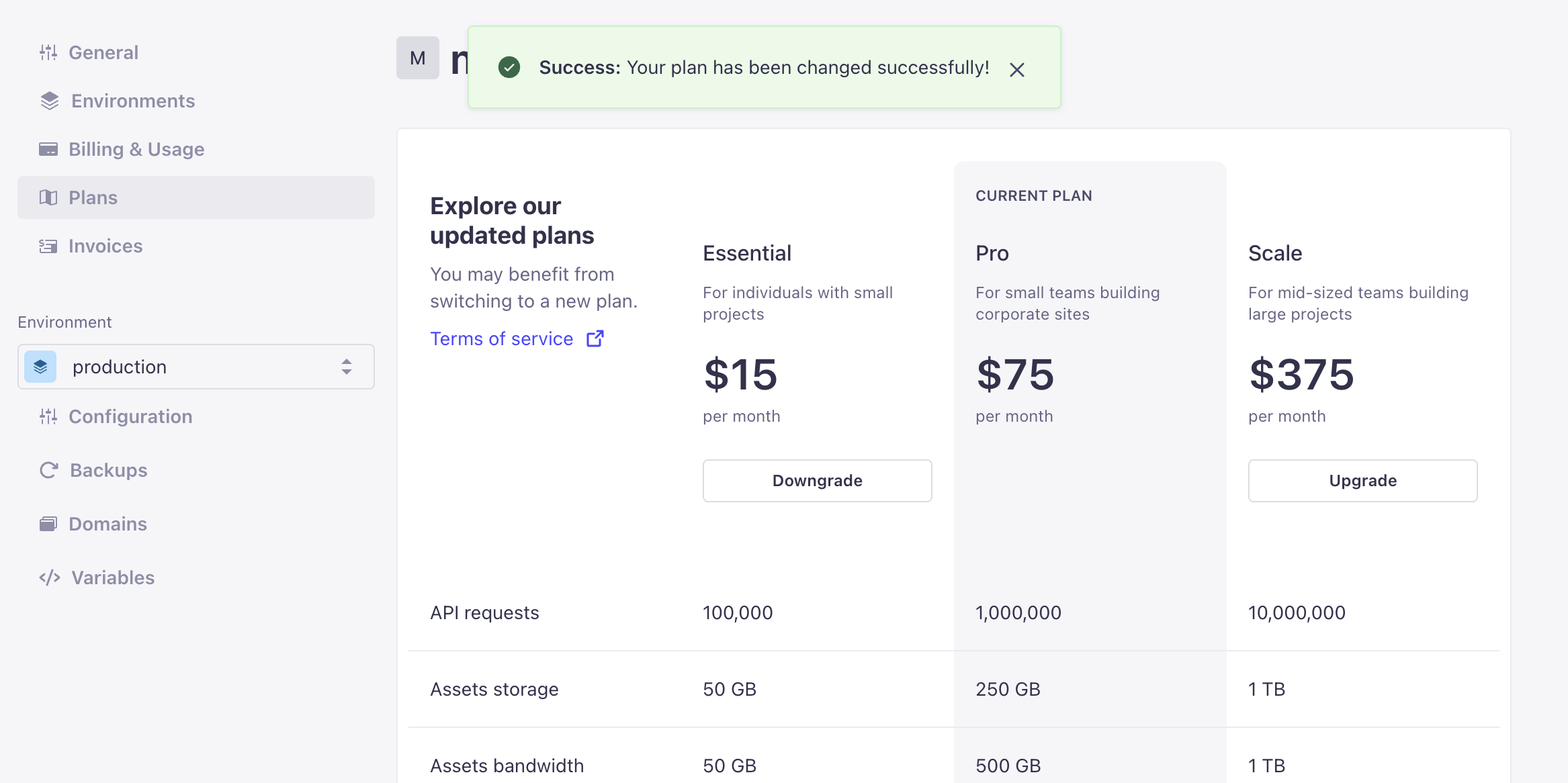
Select the plan you wish to upgrade or downgrade to and click the switch button
The upgrade/downgrade buttons might be disabled if:
You created your project less than 1 hour ago
You are on a Pro plan and have purchased another environment
You have not completed your billing details (add these at billing.strapi.io, under the Billing Details tab)
Confirm your payment total, add any discount codes, and check your payment method, then confirm the upgrade. If your payment method needs updating, do this at billing.strapi.io (Payment methods tab) before continuing.

You will see a confirmation message stating that your plan has been upgraded
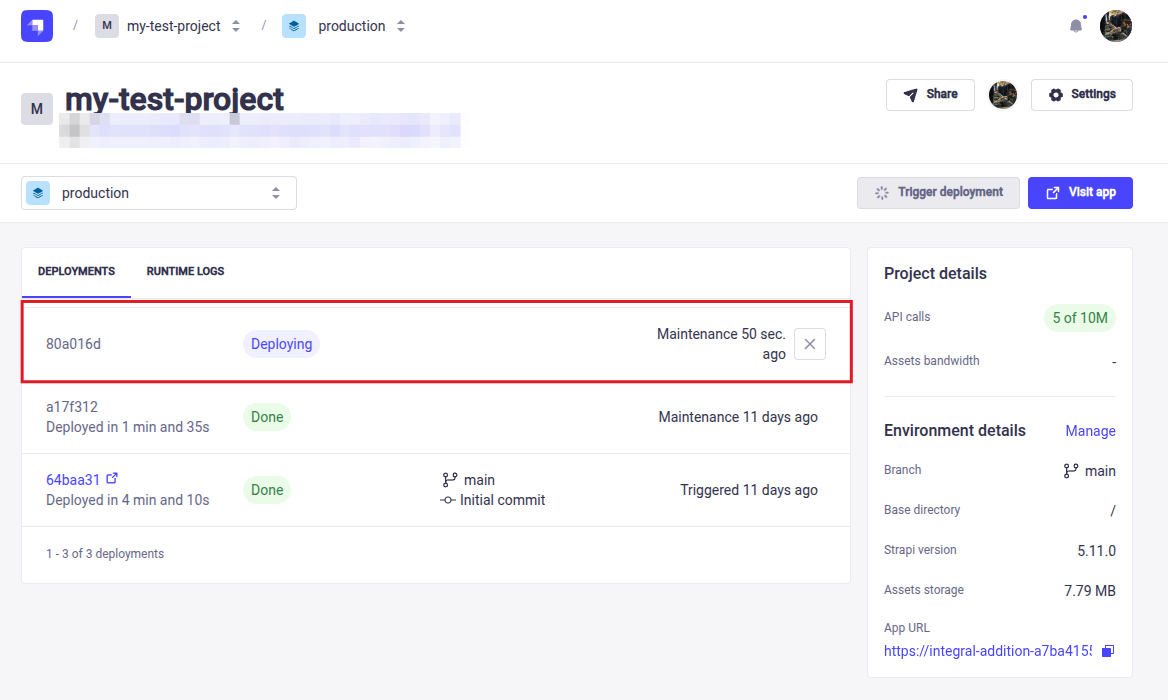
A new deployment will be triggered to ensure your limits are modified correctly
After upgrading, you can view and download your invoices as PDFs from the Invoices tab at billing.strapi.io.